> For the complete documentation index, see [llms.txt](https://blog.mantago.cc/en/llms.txt). Markdown versions of documentation pages are available by appending `.md` to page URLs; this page is available as [Markdown](https://blog.mantago.cc/en/other/user-verification-settings.md).
# User Verification Settings
You've built the perfect flow, set up the giveaway, lined up the campaign... and then a crowd of people who never left a single detail come in, grab the prizes, play the games, and walk away. Not one usable lead to show for it. The problem isn't your flow. It's that nobody set a gate on *who gets in*. MantaGO's User Verification Settings let you verify identity before letting anyone through, so users who haven't bound a phone number or don't carry the right tag can't even trigger your flow.
> 💡 TL;DR: Once you turn on the verification threshold, the bot checks every user against the conditions you set. Pass, and they continue through your flow. Fail, and they get a guidance message asking them to complete their details. Conditions fall into two groups, profile fields and user tags, and a user has to satisfy all of the ones you've switched on.
***
### Where to find User Verification Settings
From the left sidebar in your backend, go to "Setting" → "Advanced Settings," then look at the tabs across the top. "User Verification Settings" sits on the far right. Click in and you're there.
***
### Step 1 Turn on the verification threshold
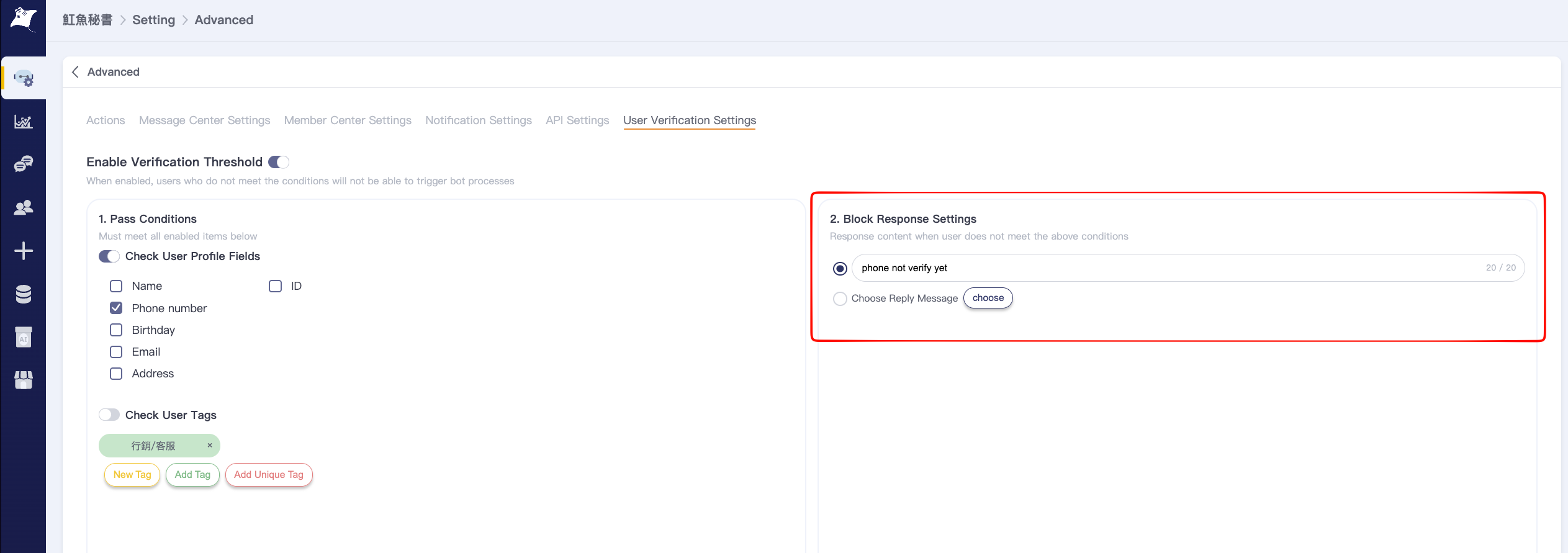
At the very top of the page you'll find the "Enable Verification Threshold" toggle. This is the master switch for the whole feature.
Flip it on, and **users who don't meet your conditions won't be able to trigger the bot's flows.** Here's exactly what that looks like in practice: their first message still goes through, and any link inside that message stays clickable, but every other bot response is blocked. Right there in that first reply, they're told they don't qualify yet and asked to complete their details first.
> Quick note: while the master switch is off, none of the conditions below take effect and everyone walks through as usual. To make the gate actually do its job, remember to turn this one on first.
***
### Step 2 Set your pass conditions: who gets in
This section decides what kind of user gets let through. There's one important principle shown right on the screen:
> Rule of thumb: **a user must satisfy every option you've switched on.** Only the items you've enabled get checked; the ones you leave off are skipped. Turn both on, and a user has to clear both to pass.
Below that sit two independently toggled checks: "Check Profile Fields" and "Check User Tags." Let's take them one at a time.
#### 2-1 Check Profile Fields
Switch on "Check Profile Fields" and the list of fields underneath goes live. You can tick any of:
1. Name
2. ID
3. Phone
4. Birthday
5. Email
6. Address
A ticked field means the user must have that piece of data on file to be let through. One thing to watch out for here:
> ⚠️ When you tick more than one field in this section, the user needs **all of them**, not just one. Say you tick both "Phone" and "Email." Now a user has to have left both a phone number and an email to clear this check. Think it through before ticking, or you'll set the bar so high you lock everyone out.
#### 2-2 Check User Tags
Switch on "Check User Tags" and you can specify which tags a user must carry to be let through.
Add the tags you want to require in the tag field (for example "Marketing/Support"), and only users who already carry those tags will pass. Below that are three buttons for creating different kinds of tags as you need them:
* Add Tag
* Add Auto Tag
* Add Personality Tag
> ⚠️ When you set more than one tag, the condition is **AND**, meaning a user has to carry *every* tag you've listed to pass. Miss one and they're out. Whether tags work as OR (any one will do) or AND (all required) makes a big difference, so remember it's all of them here.
> 🌊 Dive In: Real Play: This works beautifully for running a LINE Official Account alongside your Member center. Set the gate so a user has to finish phone verification and fill out the form, leaving their details, before any further service kicks in. If they want in, they have to leave their info first. What you walk away with is a clean list where everyone has a phone number you can use to notify them the moment a class opens, no chasing people down afterward.
***
### Step 3 Set your blocked response: what to say when someone's turned away
When a user fails verification and gets turned away, you can't just leave them confused. The "Blocked Response Settings" on the right decide what the bot says when someone doesn't meet the conditions.
You've got two reply options, pick one:
1. **Custom text**: type a short guidance message straight into the field, up to 20 characters. The default reads "You haven't bound a phone number yet, please go to the Member center to verify," which you can keep as is or rewrite in your own voice.
2. **Choose a reply**: hit the "Select" button and pick a ready-made conversation module to serve as the blocked response. Reach for this when you want richer guidance with images, buttons, or links.
> Quick note: the blocked response is the *only* thing a user sees the moment they're turned away, so spell out both "why you're blocked" and "where to go next," for example "please go to the Member center to bind your phone." Pair it with an entry point they can tap straight through, and don't leave anyone stranded at the door.
> 🌊 Dive In: Real Play: Set your blocked response to "Choose a reply" and pair it with a conversation module that has a button, copy along the lines of "You're one step away from joining! Tap below to finish binding your phone," with the button routing straight to the Member center binding page. Anyone who gets turned away not only knows where they're stuck, they can complete their details in one tap and head right back into the flow. You gate people out and reel the lead in at the same time.
***
### The whole setup, start to finish
String the three steps together and here's how it plays out for an actual user:
1. The user sends a message or taps the menu, about to trigger one of your flows.
2. The bot first checks whether "Enable Verification Threshold" is on. Only if it's on does it keep verifying.
3. It runs through the pass conditions you've enabled (profile fields, user tags). The user has to clear **every enabled item** to be let through.
4. Pass → they continue through the flow as normal. Fail → they get the blocked response you set, guiding them to complete their details.
> ✅ Pre-launch checklist:
>
> * The "Enable Verification Threshold" master switch is on
> * The checks you actually want (profile fields / user tags) are switched on, and the ones you don't are switched off
> * The fields and tags you've ticked are confirmed as an "all required" bar, and you haven't overshot
> * Your blocked response clearly states the reason and the next step, and includes a tappable entry point to complete details
Get this gate in place and everyone who reaches your flow comes with complete data and the right tags, a genuinely usable list. You're protecting list quality at the source, and everything you do afterward gets a whole lot easier.